Desktop access with VNC
One can also connect to the HPC cluster via a graphical desktop environment on one of the access nodes. This is done by using a VNC client application that supports the VNC protocol.
To setup the VNC connection, you will need to connect to the cluster using SSH first. See Terminal access with SSH for more details on how to connect to the cluster via SSH.
Set VNC password
You will need to set a VNC password to protect your VNC server from anonymous access. You only need to do it once for the first-time user. Type the following command in the terminal:
$ vncpasswd
Start new VNC server
Firstly, start the VNC server by typing the following command in the terminal.
$ vncmanager
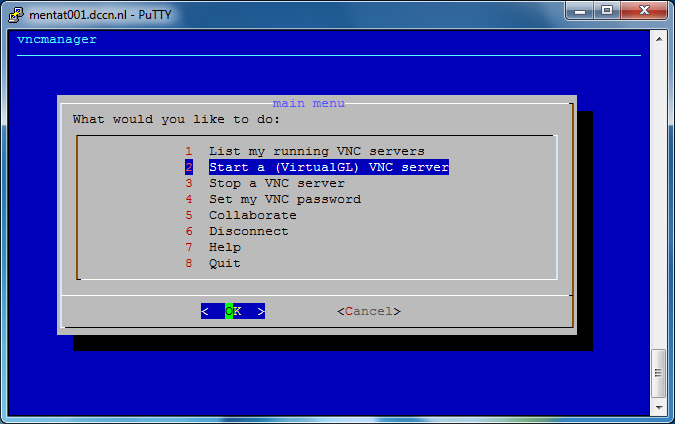
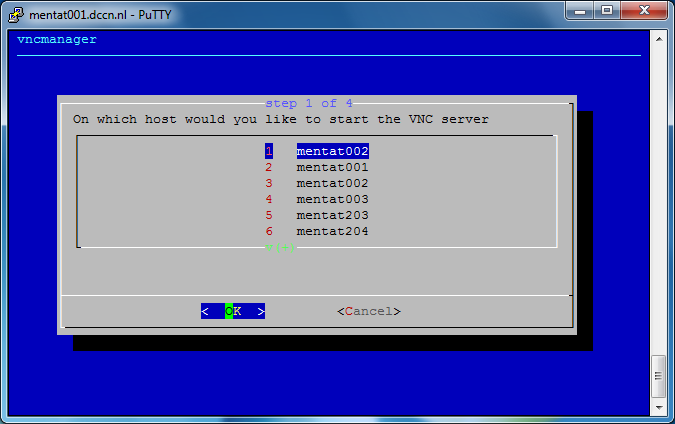
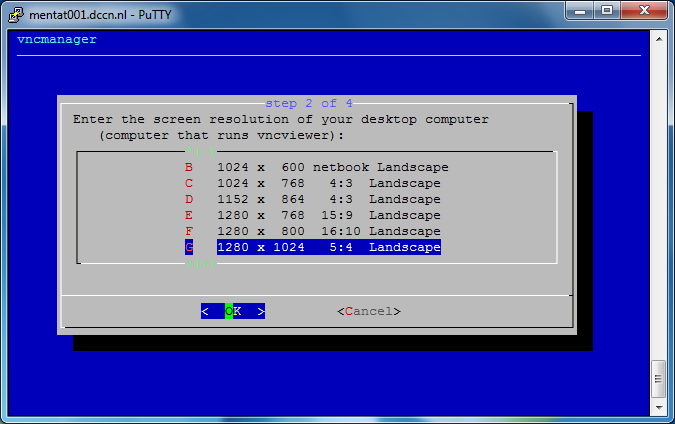
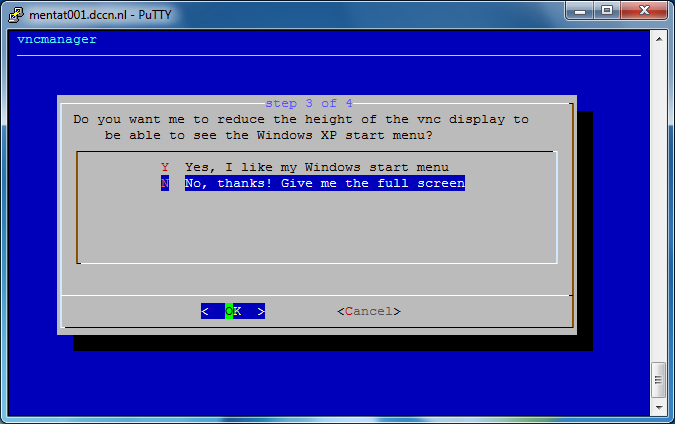
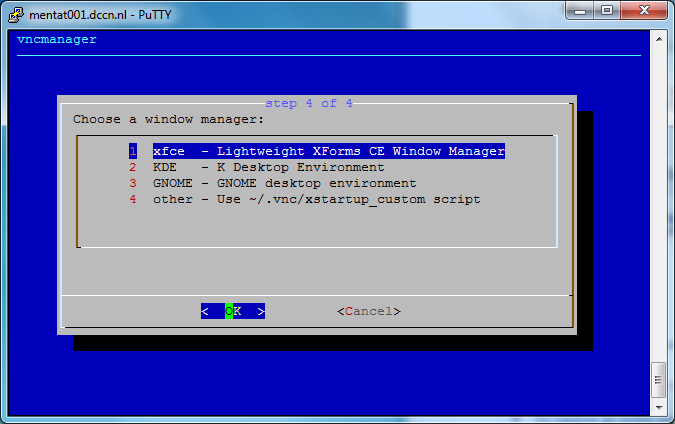
Follow the step-by-step instructions on the screen to initiate a VNC server. See the screenshots below as an example.
start a new VNC server
select a host
choose resolution
make fullscreen
select windows manager
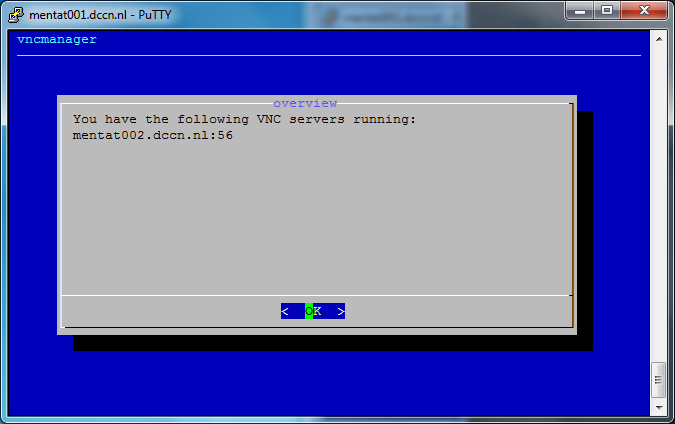
VNC server started with a display endpoint
Connect VNC server
In the screenshots above, we have started a VNC server associated with a display endpoint mentat002.dccn.nl:56. To connect to it, we use a VNC client called TigerVNC Viewer. Follow the steps below to make the connection:
Note
The display endpoint mentat002.dccn.nl:56 is just an example. In reality, you should replace it with a different endpoint given by the vncmanager.
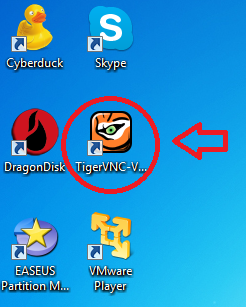
open the TigerVNC Viewer (double-click the icon on the desktop)
enter the display endpoint (
mentat002.dccn.nl:56) as the VNC server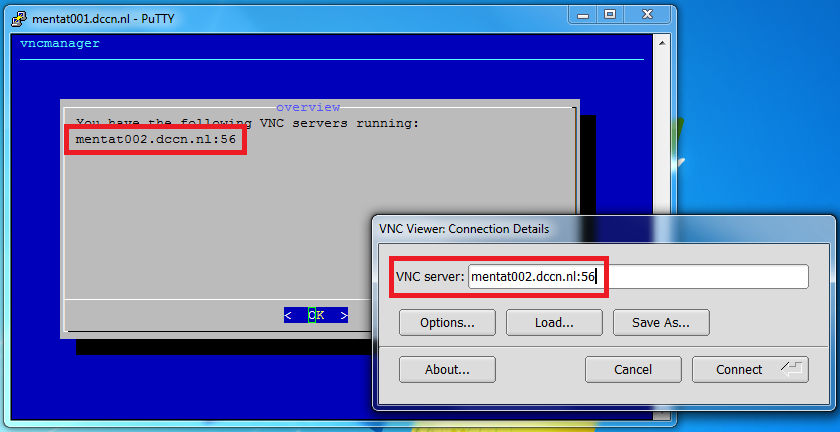
enter the authentication password you set via the
vncpasswdcommand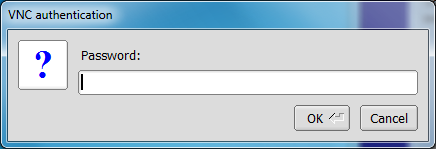
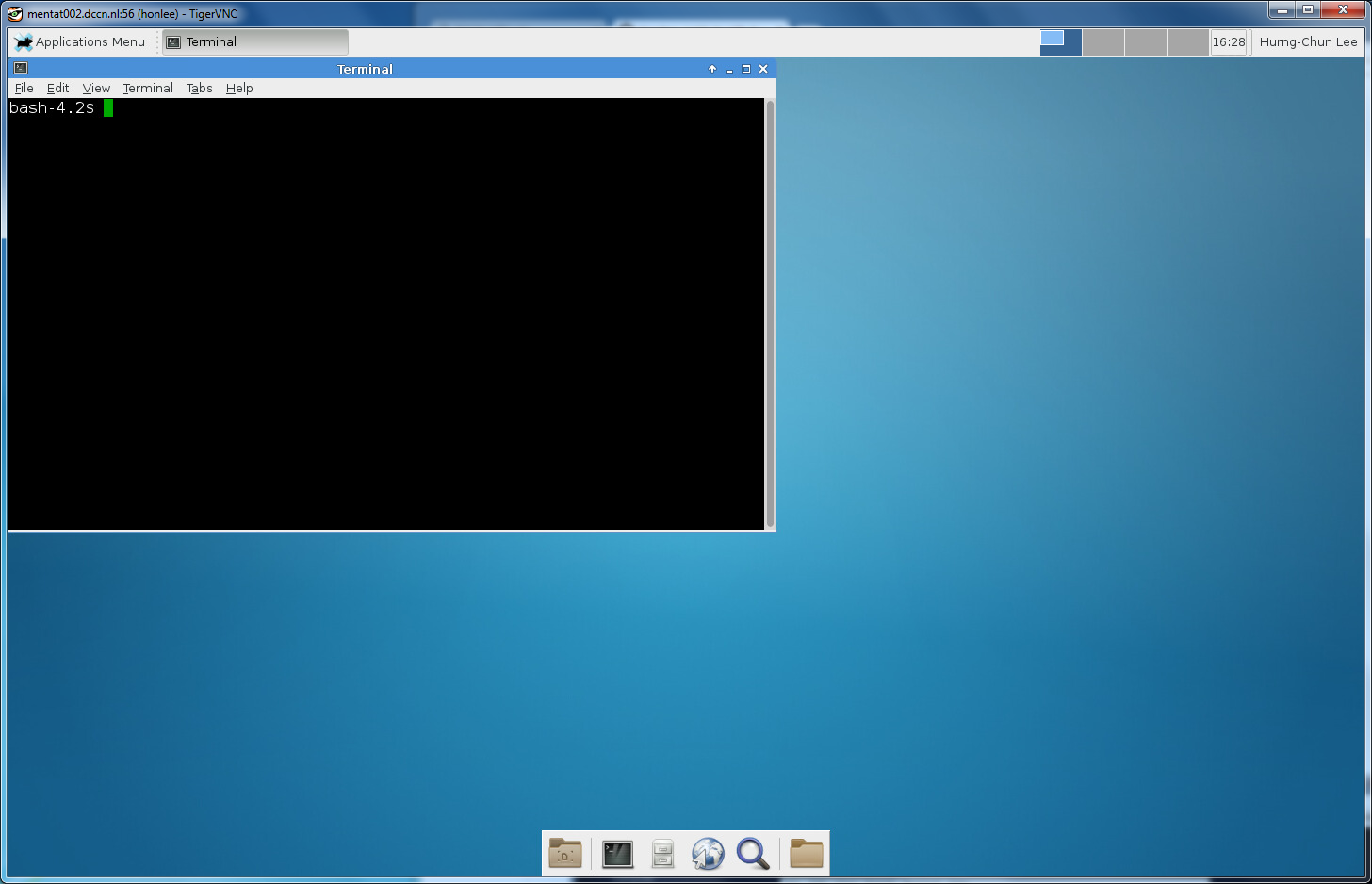
get the graphical desktop of the access node
Disconnect VNC server
To disconnect the VNC server, simply close the TigerVNC-viewer window in which the graphical desktop is displayed. The VNC server will remain available, and can be reused (re-connected) when you need to use the graphical desktop again in the future.
Warning
DO NOT logout the graphical desktop as it causes the VNC server become unaccessible afterwards.
Terminate VNC server
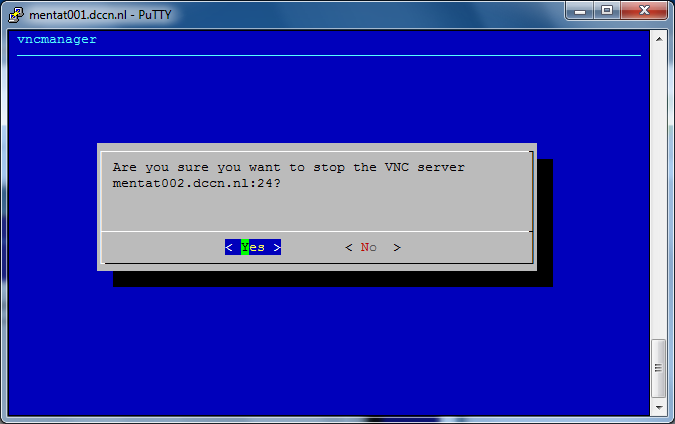
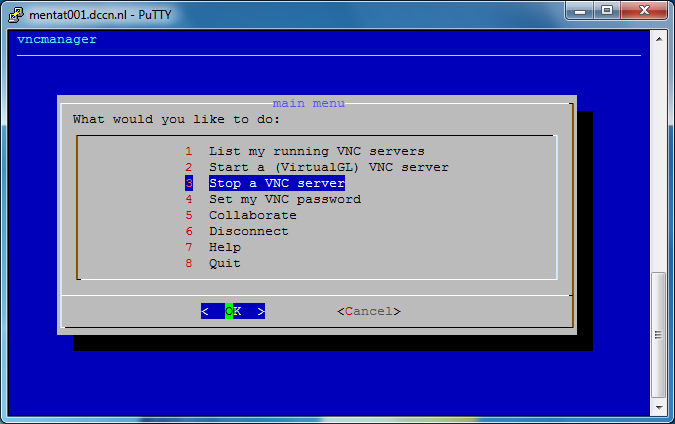
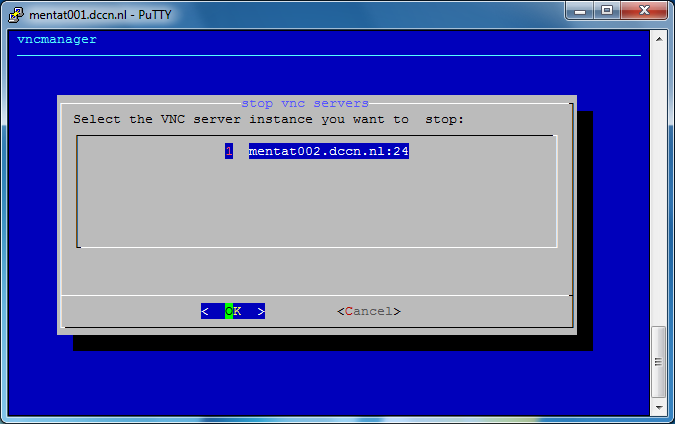
Since the graphical windows manager takes significant amount of resources from the system, it is strongly recommended to terminate the VNC server if you are not actively using it. Terminating a VNC server can be done via the vncmanager command. The steps are shown in the screenshots below:
stop a VNC server
choose a server to be stopped
confirm and stop the server