Terminal access with SSH
One can connect to the HPC cluster via a terminal session on one of the access nodes. This is done by using a terminal application that supports the SSH protocol.
Use system terminal
On Linux or MacOS, you can use the built-in terminal application. On Windows platform, you can use the built-in Windows Terminal. Alternatively you could use PUTTY (see Use PUTTY for more details) if you prefer a dedicated SSH client application with graphical interface for SSH settings.
In the terminal, you can connect to the cluster by issuing the following command with the <username> replaced by your DCCN account username and <X> replaced by a access node number between 001 and 007:
$ ssh <username>@mentat<X>.dccn.nl
You will be prompted to enter your password for the account.
Tip
For the first-time connection, you will be asked to confirm the authenticity of the host. You should type yes and press the Enter key to continue.
Tip
You will not see any terminal feedback when typing your password in the terminal. This is a security feature to prevent others from seeing the length of your password. Just type your password and press the Enter key.
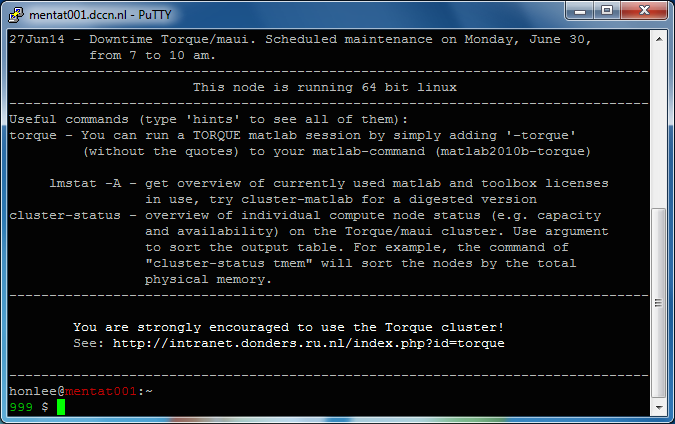
After successful login, you will see a welcome message and a shell prompt. You can then issue Linux commands to the system. Such as ls to list the files in the current directory, or cd to change the current directory. See Linux tutorial for more details on how to use the Linux shell.
To logout the system, you can either close the terminal window or type the command exit in the terminal.
Use PUTTY
Follow the steps below to connect to one of the cluster’s access nodes, using the SSH.
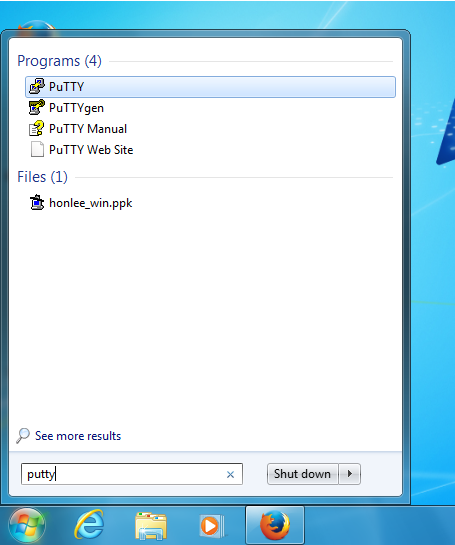
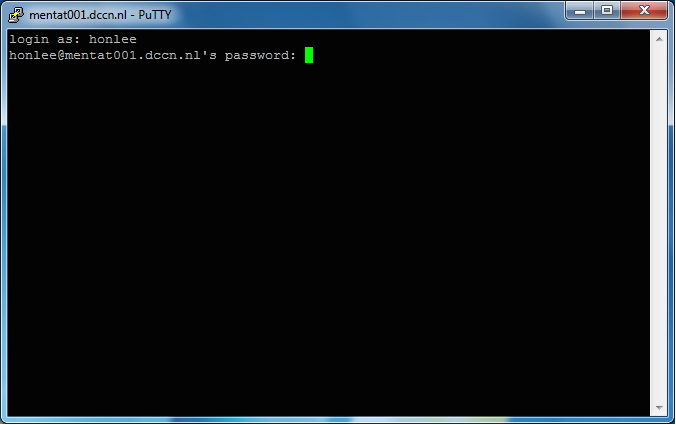
Screenshots of the four steps are shown below:
start PUTTY on on the Windows desktop
configure PUTTY for connecting to, e.g.,
mentat006.dccn.nl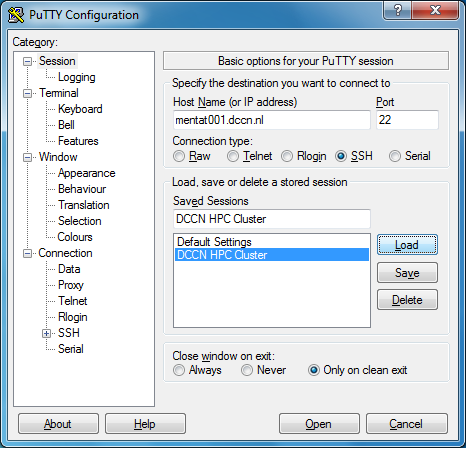
login with your username and password
get a test-based virtual terminal with a shell prompt